Welcome to Sourcelett
Sign in, choose what to make, and start your first project.
Sourcelett brings documents, presentations, drawings, AI chat, and research into one home screen. Start with an idea in the composer, or open an empty file and work from scratch.
Create your account
When Sourcelett asks you to sign in, choose Create account. You can select Continue with Google or enter an email address and password. If you use email, enter the password again in Confirm password, then select Create account. Already have an account? Select Sign in instead.
After email sign-up, Sourcelett sends a verification message. Open the link in that email. If the banner at the top of Home still asks you to verify, select I have verified to refresh your status. You can also select Resend email there, or Resend Verification Email in Settings › Profile.
Start from Home
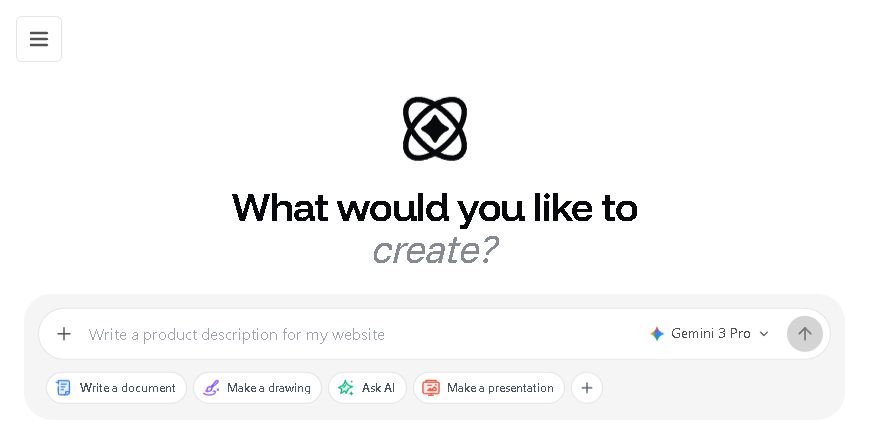
Home asks, “What would you like to create?” Choose Write a document, Ask AI, or Make a presentation below the composer. Type what you want, then select the arrow button to start. The choice appears as a pill in the composer; remove that pill if you want to switch modes.
Ask AI from Home opens a general conversation. You can continue with follow-up questions and find it again in your recent work.
For a blank start, select the Create an empty file plus button at the end of the mode row. Its menu offers Empty document, Empty drawing, and Empty presentation.
You can select the plus button inside the composer to add context, such as an uploaded file, a URL, or one of Your Documents, before sending your prompt. Web search is available in the composer menu when the chosen mode supports it.
Find your way around
The left sidebar has Home, your Documents and Research history, a Search... field for that history, and Settings & Preferences under your profile. Home also shows recent work by type. Open Your workspace for the file list and search controls.
Was this helpful?