Create a drawing
Add shapes, freehand strokes, text and images; arrange, save and export the canvas.
From Home, choose Create an empty file › Empty drawing to open a blank canvas. The tool row floats across the top of the drawing board. The controls for saving, the library and image export sit near the bottom on a wide screen; on a smaller screen, open the … menu for Save, Library, Export Image and Properties.
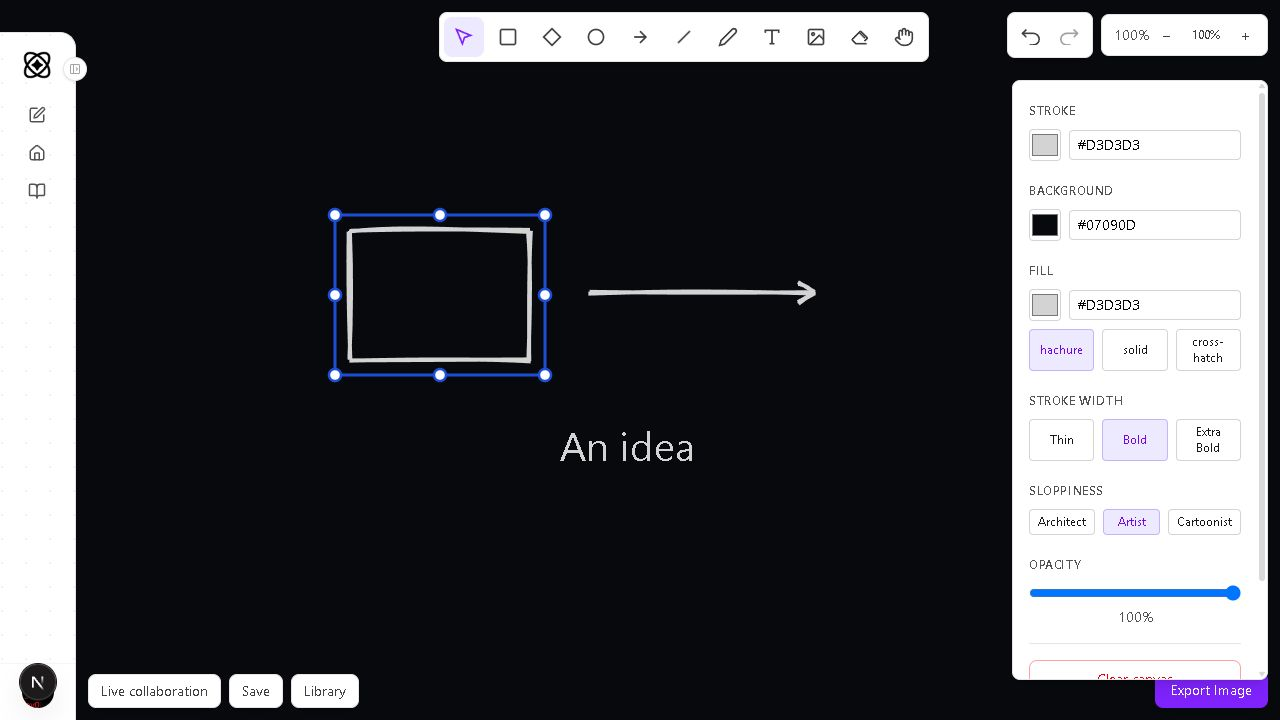
Draw on the canvas
Choose a tool in the top row, then use the canvas:
| Tool | What to do | Shortcut |
|---|---|---|
| Rectangle, Diamond, Ellipse, Arrow, Line | Drag from a starting point to set the size or length. | R, D, O, A, L |
| Draw | Drag to make a freehand stroke. | P |
| Text | Click where the text should begin, type, then press Enter or Esc to finish. | T |
| Image | Click the canvas and choose an image file. Sourcelett places it near the center and selects it. | I |
| Selection | Click an element to select and drag it. Drag a handle to resize it. | V |
| Eraser | Click or drag over elements to remove them. | E |
| Pan | Drag the canvas to move your view. | H |
After you draw a shape or line, the board selects it and returns to Selection. Draw remains active so you can make more strokes. Double-click existing text to edit it. With an element selected, press Delete or Backspace, or choose Delete element in Properties, to remove it.
Change the look
The Properties panel changes with the selected tool or element. Use Stroke for its outline or text color, Fill for a shape, and Stroke width for line weight. Shape fill offers hachure, solid and cross-hatch. Sloppiness offers Architect, Artist and Cartoonist. Depending on what is selected, you can also adjust Opacity or Font Size. Background is available even when no element is selected.
On a small screen, open … › Properties to reach the panel. To change an existing element, choose Selection and click it before changing a property. With nothing selected, the tool properties set the appearance of the next element you draw.
Move around and undo
Use the − and + zoom controls to change the view, or select 100% to reset it. Zoom ranges from 10% to 500%. You can also hold Ctrl while scrolling over the canvas. Choose Pan and drag when you need to move the view without moving a drawing element.
Use the undo and redo buttons to step through drawing changes. Ctrl Z (or ⌘ Z on a Mac) undoes; Ctrl Y or Ctrl Shift Z redoes, with the corresponding ⌘ keys on a Mac. Clear canvas in Properties removes every element. If you want the empty canvas to replace a previously saved drawing, select Save afterward.
Save, reopen and export
Select Save to save the current drawing to your account. Changes to a nonempty drawing also trigger an automatic save after a short pause. Open Library to see recent saved drawings, select one to reopen it, or choose New Drawing for a blank canvas. In the library, hover over a drawing and select Rename to change its title.
Select Export Image to download the current canvas as drawing.png. This exports the canvas view as a PNG; it does not create another editable drawing in your library.
Was this helpful?